
How can we help you?
Simple, step-by-step instructions to help your grooming team use PetCare confidently.
Getting started
Set up your workspace and learn the daily flow.
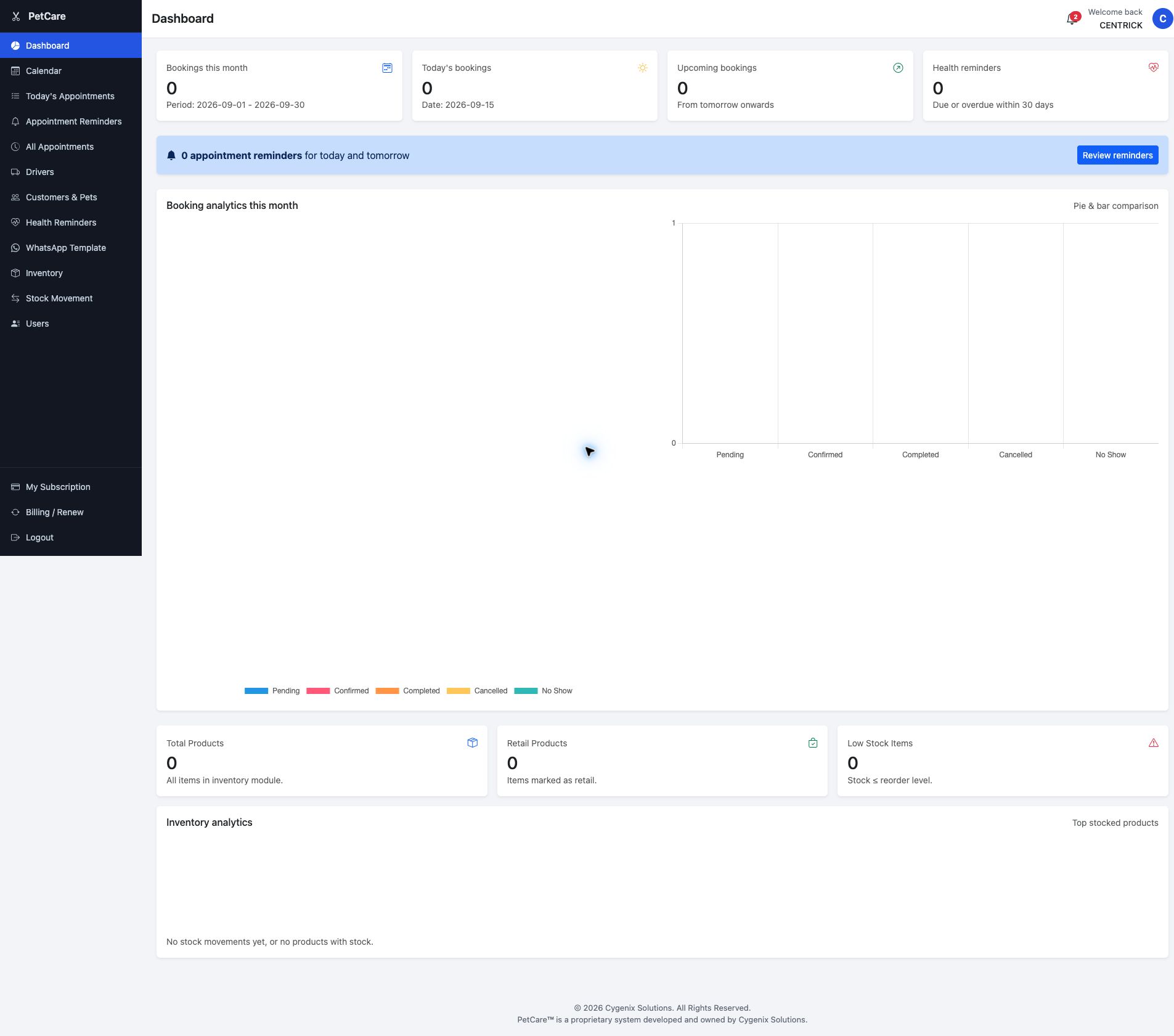
Sign up with the owner's email and a phone/WhatsApp number. A phone number is required for every new shop, including Free. The SSM number is optional, but you need it to join the launch offer. Each business (same email, phone or SSM) can open one Free shop.
 Enlarge
Customers & pet records
Keep owner details and every pet’s history organised.
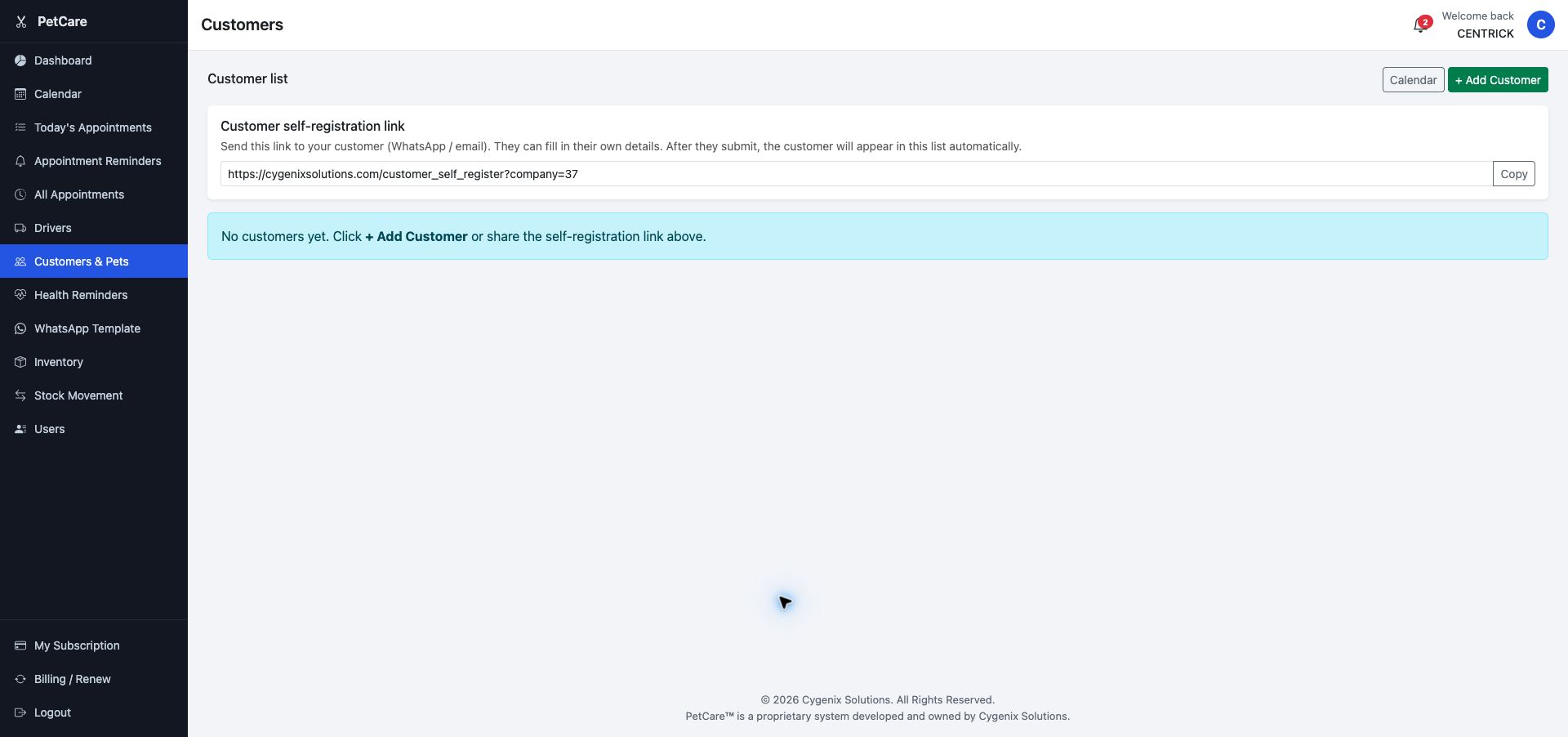
Open Customers, choose Add Customer, enter the contact details and save.
Open Pets, select the owner, then record the pet’s name, breed and important notes.
Update vaccination or health dates and notes whenever the owner provides new information.
Check past grooming and health notes so staff understand the pet’s needs.
 Enlarge
Appointments & calendar
Create, manage and follow up on grooming bookings.
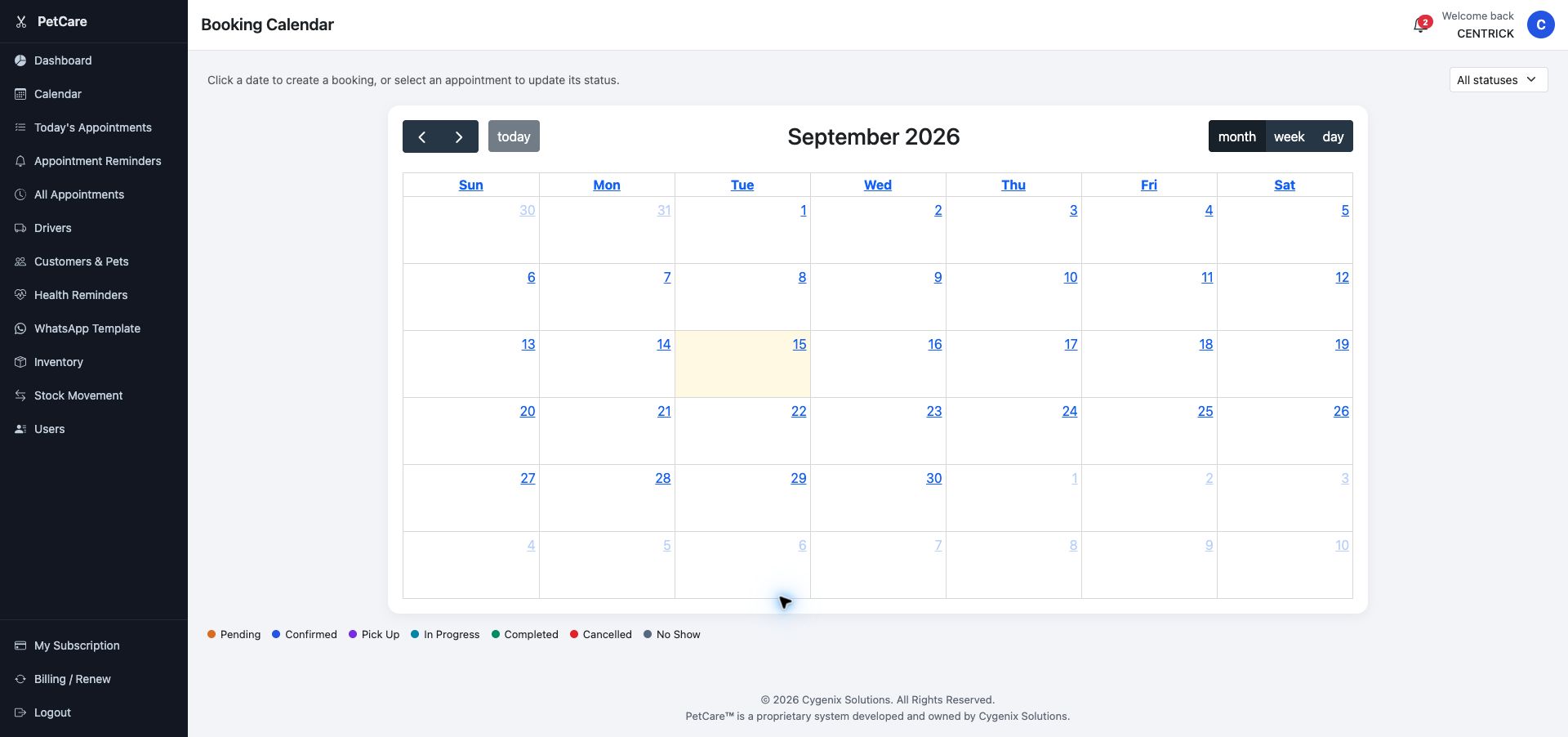
Use the calendar or appointment list to check staff availability and busy periods.
Select the customer and pet, then enter the date, time, service and booking notes.
Check the selected date, customer phone number and special handling notes before saving.
Update the booking as the pet moves through the grooming process so the team sees accurate information.
 Enlarge
Pick-up drivers & grooming-progress link (Starter and above)
Send the customer a grooming-progress link so they can see how their pet's visit is going. (Every plan can update a booking's status; the customer link is Starter and above.)
Add your drivers under Drivers, assign them to a booking, and open the customer's address in Waze or Google Maps (the button appears when the customer has an address saved).
Appointment & health reminders
Prepare timely customer messages with a staff review step.
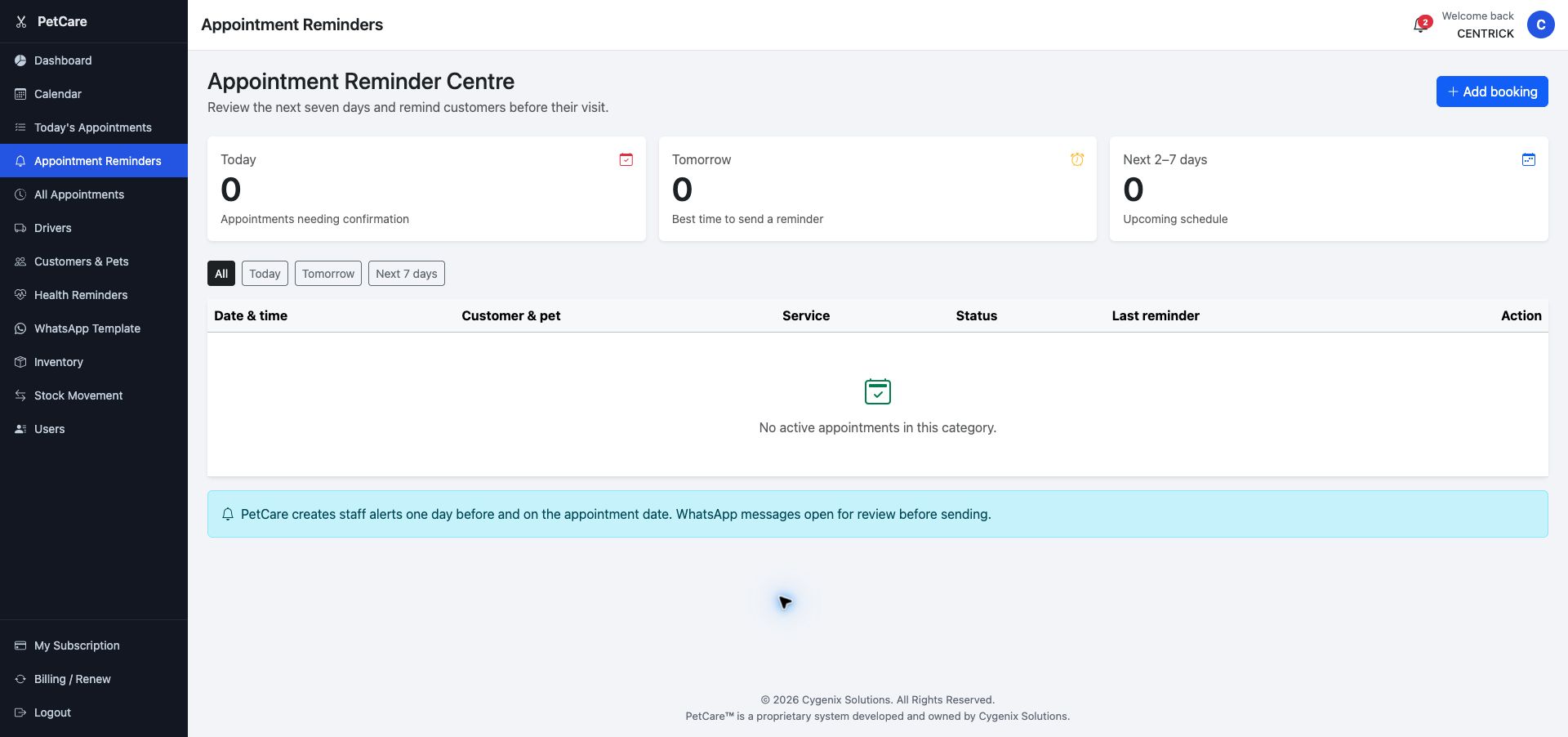
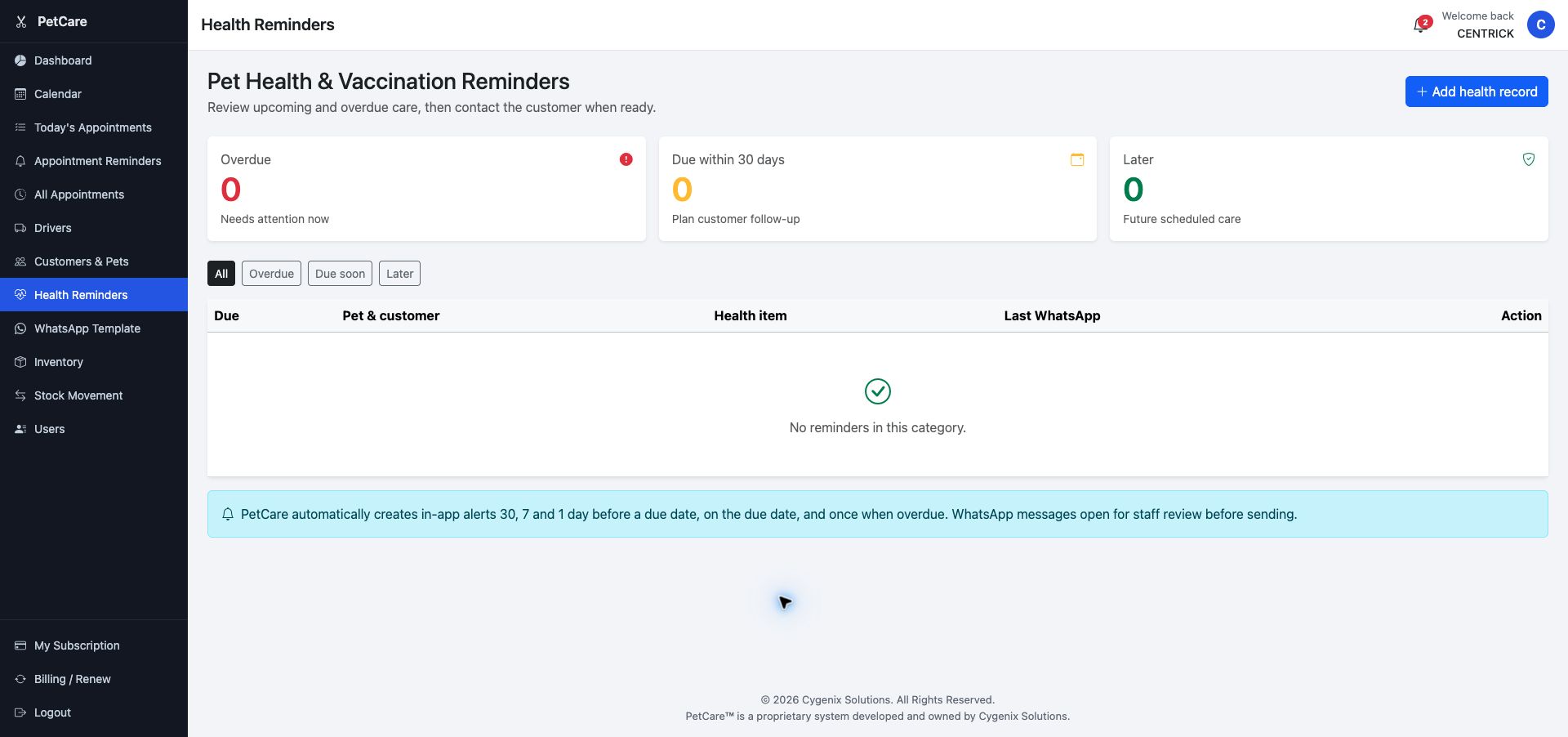
Choose Appointment Reminders for upcoming bookings or Health Reminders for vaccinations and health follow-ups.
Confirm the customer, pet, date and message before taking action.
PetCare prepares the message for review. Check it carefully, then send it from WhatsApp.
Return to PetCare and keep the reminder status accurate for the rest of the team.
Inventory & stock
Track grooming products and avoid running out.
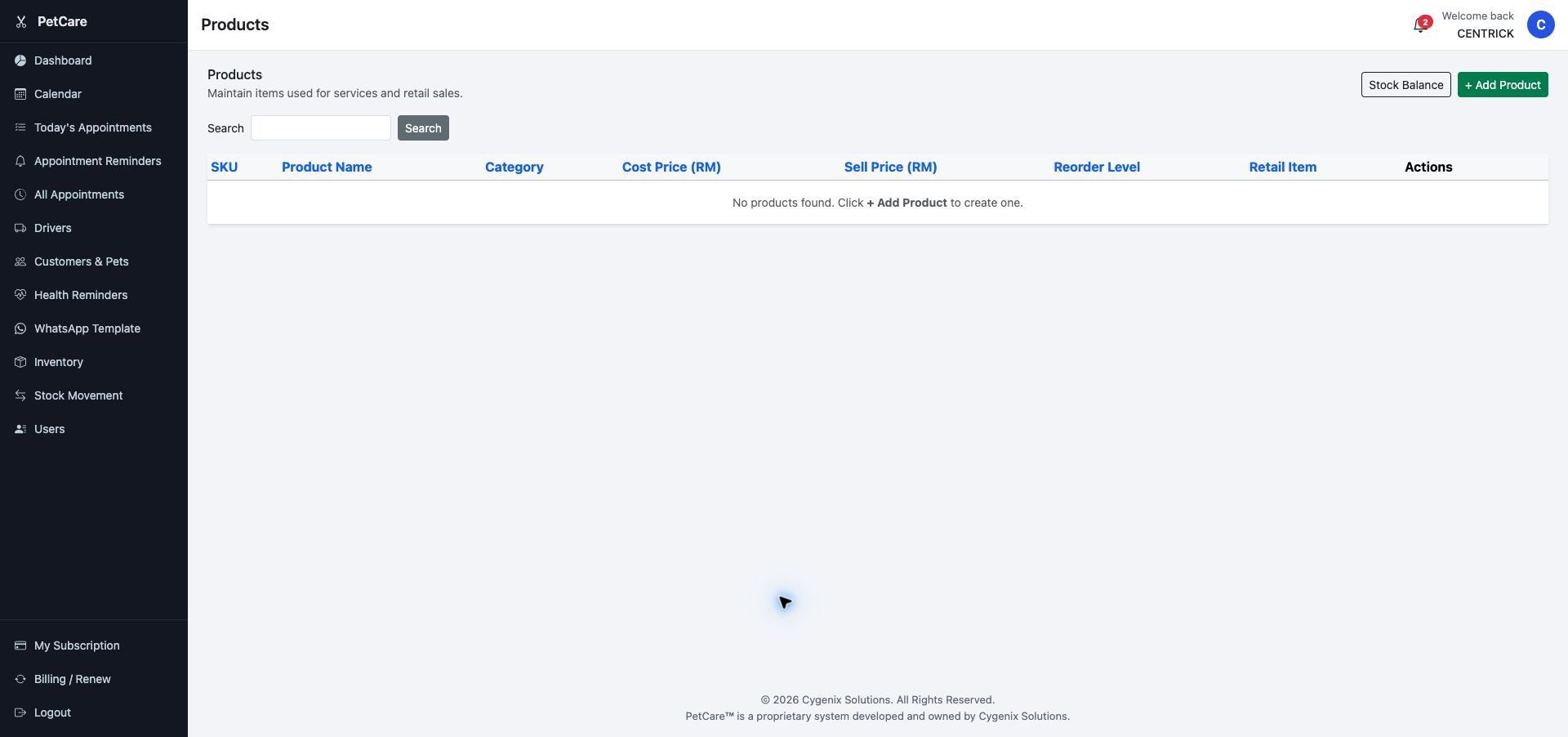
Add each grooming item with a clear name, unit and opening quantity.
Enter stock received, used or adjusted so the balance stays reliable.
Review alerts regularly and restock before supplies reach zero.
When a balance looks wrong, review its movement history to find the cause.
 Enlarge
Team members & access
Give staff individual access and keep accounts secure.
Use an individual account instead of sharing one password across the team.
After login, choose the business to open and press Continue. To change later, open the user menu (top right) and choose Switch Company.
Review your users whenever a team member changes role or leaves.
Each plan includes a set number of staff seats: Free 2, Starter 5, Prime 8, Pro 12, Enterprise 36. When all seats are used, you can't add new staff until you upgrade (or contact us for extra seats). If the plan is downgraded or moves to Free, the newest staff above the new limit are paused (not deleted) and come back automatically when you upgrade.
Plan features & upgrades
See what your plan includes and how to upgrade.
Some features depend on your plan. A feature your plan doesn't include shows a 🔒 lock. Open it to see which plan includes it, then choose Upgrade now, View plans or Back. Only the shop owner sees Upgrade now; other staff see "Please ask the shop owner to upgrade the plan."
Subscription & billing
Manage your PetCare plan and payment records.
Review your current plan, billing cycle and renewal information.
Follow the billing screen and verify the company information before payment.
Download the payment receipt after a successful payment. Your AutoCount invoice is issued separately and appears under My Subscription → Invoices when it is ready (only the shop owner can open My Subscription). We email the shop owner when it's available.
You can add extra staff seats (+5 seats, RM15/month), data import (from RM99 per import) and remote setup & training (RM149 per session). Contact us to add them. Extra staff seats are for paid plans. Add-ons cover only features not already in your plan. Prices exclude SST.
Feedback
Report a problem or share an idea with our team.
Open Feedback in the left menu. Under Send feedback, choose a type (Problem, Suggestion, Billing or Other), write your message, attach one screenshot if it helps (PNG, JPG or WebP), then tap Send.
Check Feedback you sent on the same page. Each item shows Pending, In progress or Resolved, and our reply appears there too. We email you when it's resolved. The shop owner sees all feedback sent from the shop. Other staff see their own feedback.
Frequently asked questions
Quick answers to common PetCare questions.
I forgot my password. What should I do?
Choose “Forgot Password” on the login page, enter your registered email and follow the verification steps to create a new password.
Why can’t I find a pet when creating an appointment?
Make sure the owner has been added as a customer and the pet record is linked to that customer. Refresh the booking form after saving the pet.
Does PetCare send WhatsApp messages automatically?
No. PetCare prepares the reminder and opens it for staff review. Your team confirms the information and sends the message through WhatsApp.
Why is a health reminder missing?
Check that the pet has a valid future or due health date recorded and that the customer has current contact details. Correct the record, then revisit Health Reminders.
Can I use PetCare on my phone?
Yes. PetCare is browser-based and responsive. For the best experience, use an up-to-date version of Chrome, Safari or Edge.
How do I fix an incorrect stock balance?
Open the product’s Stock Card, review its movement history, then enter a clearly labelled adjustment. Avoid editing past records without checking with your manager.
Why do I see a 🔒 on a menu?
That feature isn't included in your current plan. Open it to see which plan includes it. The shop owner can upgrade from there.
Can I get training?
This guide covers the daily flow. If your team wants a guided session, remote setup & training is available at RM149 per session. Contact us to book.
Can I open a second Free account?
No. Your email, phone and SSM can be used by only one Free shop. Any existing shop counts, including a campaign shop. To open another shop, upgrade your current shop to a paid plan or contact us.
How do I contact support?
Email [email protected] or WhatsApp/call 011-2078 1106. Include your company name, the page you were using and a screenshot of the issue.
No guide topics found
Try a shorter word such as “booking”, “pet”, “stock” or “password”.